How To Fast up the Google Chrome in Easy and Better Way!

0 comments


Google Chrome is one of the most used Web-Browsers and is known for its speed. Even though it is faster than other browsers you can make it even more faster for a better web surfing experience, this article will guide you through some simple tricks to speed it up.

So if you have an older and slow PC like me, you're probably gonna love this post.

Advance Settings (Flags)

The first step to make Chrome faster is to enable some hidden experimental features, these features are called "flags" and are used to optimize the performance of your browser.

Step 1:
In the address bar type about:flags

Step 2:
Scroll down to find these options and Enable/Disable them as shown below:
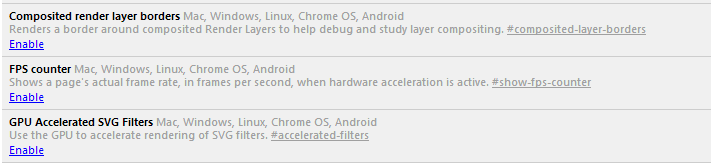

 Enable GPU compositing on all pages
Enable Threaded compositing
Disable accelerated 2D canvas. 
Enable override software rendering list. 
Disable GPU VSync Mac, Windows, Linux, and Chrome OS. 
GPU-accelerated SVG filter (enable) 
Disable accelerated CSS animations.

Step 3:
Also disable these:
                               Prerender from omnibox
                               Aggressive History URL scoring

 Step 4: 
Hit the Relaunch button at the bottom of the page to restart Chrome.

Under The Hood
Step 1: 
Click the wrench icon in the top-right corner of your Chrome and go to settings.

Step 2:
Under the privacy un-check all the options except Enable phishing and malware protection as shown in the screenshot:


Deleting Temporary Data

Delete all the temporary data, history, cookies etc. to make your Chrome work smoothly. to do this press Ctrl+Shift+Del and choose what things you want to remove. Removing everything is recommended except the Auto-fill data and passwords. If you don't save passwords you can also select these options and erase them as well.

Removing Un-necessary Extensions

One of the reasons behind slowness of your Chrome is unwanted extensions. Extensions eat a lot of your CPU, you can remove all the extensions that you don't use.
To do this click the Wrench icon in the top-right corner of screen, and select Extensions, and remove all unwanted extensions.

Disabling Plug-ins

Plug-ins can also cause slow page loading, don't install any plugins that you don't use often. Some plugins are automatically installed by other programs that can slow-down your Chrome. To know what plugins are installed type chrome://plugins in the address-bar and hit enter.

Now disable all the unneeded plugins, i recommend you disable all the plugins except Adobe Flash Player and Internet Download Manager (if you have one).


 Hope this post helps you making your web-experience even better, do comment and let me know if you know any other ideas to make Google Chrome even more faster. Thanks :)


Read More..

Google Tricks (Customization)..

0 comments


Google Tricks (Customization)

Some simple, interesting and useful tricks:
Google Calculator:


Google search can be used as a calculator. It can calculate anything from the simplest
math to the most complex equation. All you need to do is just enter the math in the
search box and hit enter. You can use the following functions:
+ - Add
- - Subtract
* - Multiply
/ - Divide
^ - To the Power Of
sqrt - Square Root of a Number


Dictionary Definitions:


You can define any word by entering �define:� following the word.Example define: ignoble

Google will display a list of dictionary definitions for that word.


Search for a Specific Title:


Suppose you came across a great article which you really liked but unfortunately 
forgot to bookmark it then you can find it easily with the help of Google 
provided you know the title of the article. Here�s how you do it:
Let�s say you read an article �Women talk three times as much as men�
then you can search for it by typing �intitle: Women talk three times as much as men�


Google Converter:


Using this feature you can convert units like millimeter into inches, kilometers into miles,
liters into ml, etc. You can do so by typing �25km in miles� for converting km in to miles,
�50litres in ml� for converting litres into ml, and so on.


Google Currency Converter:


Google�s search has an inbuilt currency converter. It allows you to perform any currency
conversion. All you need to do is just enter the conversion you�d like done into the
Google search box and hit �Enter� or click the Google Search button. For
instance: �1 USD in INR�


Weather Updates:


You can easily know the weather condition of a specific place. In order to find
out, all you need to do is just enter the place name followed by �weather�. For
ex: �london weather�


Search on a Particular File Types:


There are various kinds of files available over the net. Searching for a specific file
type isn�t really easy. But using this tip you can easily search for a specific file type.
For instance if you want to search for a guide, let�s say a �Guide to Building a
Successful IT Career� in ppt format. You can make use of the �filetype:� function.
So in order to search for the PPT version of the guide you can enter in search bar
�Guide to Building a Successful IT Career filetype:ppt�


Search on a Particular Website:


If you want to search for something from a particular site using Google search
then you can do so by using the �site:� feature. Here�s how you do it:
Let�s say you want to search for cloverfield DVD on Amazon, you can do so
by typing �cloverfield DVD site:www.amazon.com�


Get the Local Time anywhere:


Wanna know what time is it in London now? You can ask Google by typing �what
time is it London� in the search bar. You can also enter �time (location)� without the

quotes.


Remove Unwanted Search Results:


Suppose you wanted to search a Harry potter book review but you ended up in
getting reviews of the movie rather than the book. Well in this case you can
make Google to exclude the movie results from the search. You can do so by
adding �-movie� at the end of the term. For instance: �Harry potter Chamber of
secrets -movie� This will give search results excluding the movie- The chamber

of secrets.


Search for URL's:


You can even search for URLs in Google search.For instance:
�Women_talk_three_times_as_much_as_men�. You can also 
use �.� �-� instead of �_�. The search will bring up results with 

the URLs containing the above words entered.


Track Flight Status:


You can also track a particular flight status. All you need to do is just enter
the airline and flight number into the search box and hit enter. You�ll get the 
arrival and departure time of the flight right inside Google�s search results.


Search Google Groups by the Subject Line:


You need to be in the google groups search page before attempting this query;
otherwise it might not work correctly. Using the �insubject:� function you can 
search google groups by the subject line. For instance �insubject:windows xp 
fast shutdown�


Find Related Sites:


Suppose you find an interesting website and you would like to find some other
alternative to this site then you can do so by using �related:� function. For 
instance if you want to search an alternative for google.com you can do so by 
entering �related:www.google.com�


Find Links to a Specific URL:


You can find the webpages which have a link to a specific URL using the �link:� 
function. This is really great as it will help you if you own a website, you can 
easily find out the pages linking to a page in your site. To use it, you need to 
enter the whole URL after �link:�
For instance �link:http://www.cnn.com�
Well that�s it for now, hope you liked them. If you know more feel free to mention them here.


Whois Lookup Service:


You can also search for information on a particular domain name. Just type in
�whois domain.com� and hit enter. You�ll get to see the creation and expiry 
dates of the domain.
Suggests Words, Phrases and their Results:
This is really helpful if you aren�t able to spell a particular word or you 
would like to know the results a particular word would contain when searched.


Read More..

20 Awesome Google Tricks...

0 comments


1. Type “let it snow” and click on I’m Feeling Lucky. (awesome snow effect)

2. Type “google gravity” and click on I’m Feeling Lucky. (things start falling down)

3. Type “elggog” and click on I’m Feeling Lucky. (amazing mirror effect)

4. Type “do a barrel roll” and click on I’m Feeling Lucky. (a nice barrel roll attempted)

5. Type “who’s awesome” and click on I’m Feeling Lucky. (check it out yourself)

6. Type “tilt” and click on I’m Feeling Lucky. (webpage in 3D)

7. Type “who is the cutest” and click on I’m Feeling Lucky. (cute reviewed)

8. Type “google loco” and click on I’m Feeling Lucky. (someone starts moving)

9. Type “lol limewire” and click on I’m Feeling Lucky. (awesome picture)

10. Type “epic google” and click on I’m Feeling Lucky. (check it out yourself)

11. Type “rainbow google” and click on I’m Feeling Lucky. (check it out yourself)

12. Type “annoying google” and click on I’m Feeling Lucky. (check it out yourself)

13. Type “google pacman” and click on I’m Feeling Lucky. (check it out yourself)

14. Type “google heart page” and click on I’m Feeling Lucky. (check it out yourself)

15. Type “google magic” and click on I’m Feeling Lucky. (check it out yourself)

16. Type “google (color name)” and click on I’m Feeling Lucky. (check it out yourself)

17. Type “epic box” and click on I’m Feeling Lucky. (check it out yourself)

18. Type “sexy snape” and click on I’m Feeling Lucky. (check it out yourself)

19. Type “google sphere” and click on I’m Feeling Lucky. (check it out yourself)

20. Type “weenie google” and click on I’m Feeling Lucky. (check it out yourself)
Read More..
0 comments

Use Google to get almost any software's serial no:...

Use Google to get Serial No of any Software

Most of the people downloading trial and using it, only after the expiration of trial they try for crack, Serial No, Keygen, Patch....


But many don't known where to get Serial No, Some websites may be infect your system with Trojan horse, Viruses, Ad ware, Spy ware....


So for beginners this is a simply way to find hack with less effort and it saves time to, But make sure you have anti virus activated before trying to get some Serials, Patches to avoid data loss


Just follow the steps as instructed below


1) Go to Google

2) type this syntax in search bar " 94FBR"

3) Replace Product name with desired software and leave a space then type 94FBR

4) Press enter, thats it


Now you receive Many pages which contains Serial no, Crack, Patches....


Just make a try, this simple trick works for many peopl.


Demo: 94fbr office 2007

(Its will list the pages contains the keys for Office 2007)


Read More..
Icon Icon Icon Follow Me on Google Plus

Copyright 2011 All Rights Reserved / Privacy Policy / Sitemap / Contact Us

Template by / TricksWonder / Powered by / Blogger